
● Console settings · Team
Team and roles
who may do what.
Each person on your team signs in with their own e-mail and password and has one of three roles: Viewer, Manager or Owner. Give each person the smallest role that lets them do their work. Every change anyone makes is written to the audit log with their name.
01The three roles
| Role | Can |
|---|---|
| Viewer | Read every page and setting. Run nothing, change nothing, export nothing. |
| Manager | Everything a viewer can, plus: run searches, add and edit leads, check websites, create report links, write notes and tasks, move leads between stages, write, send and delete drafts, record messages sent by hand, add addresses to the do-not-contact list, export leads as CSV, change settings that are not marked owner-only, test keys, see the team list. |
| Owner | Everything, plus: set, replace and clear keys (Integrations), the default source and OpenStreetMap addresses (Place data), the AI drafts fields, delete leads, remove an address from the do-not-contact list, add, change and remove team members, export and import settings, download the audit log, roll back a change, change the alert rules and the team two-factor rule. |
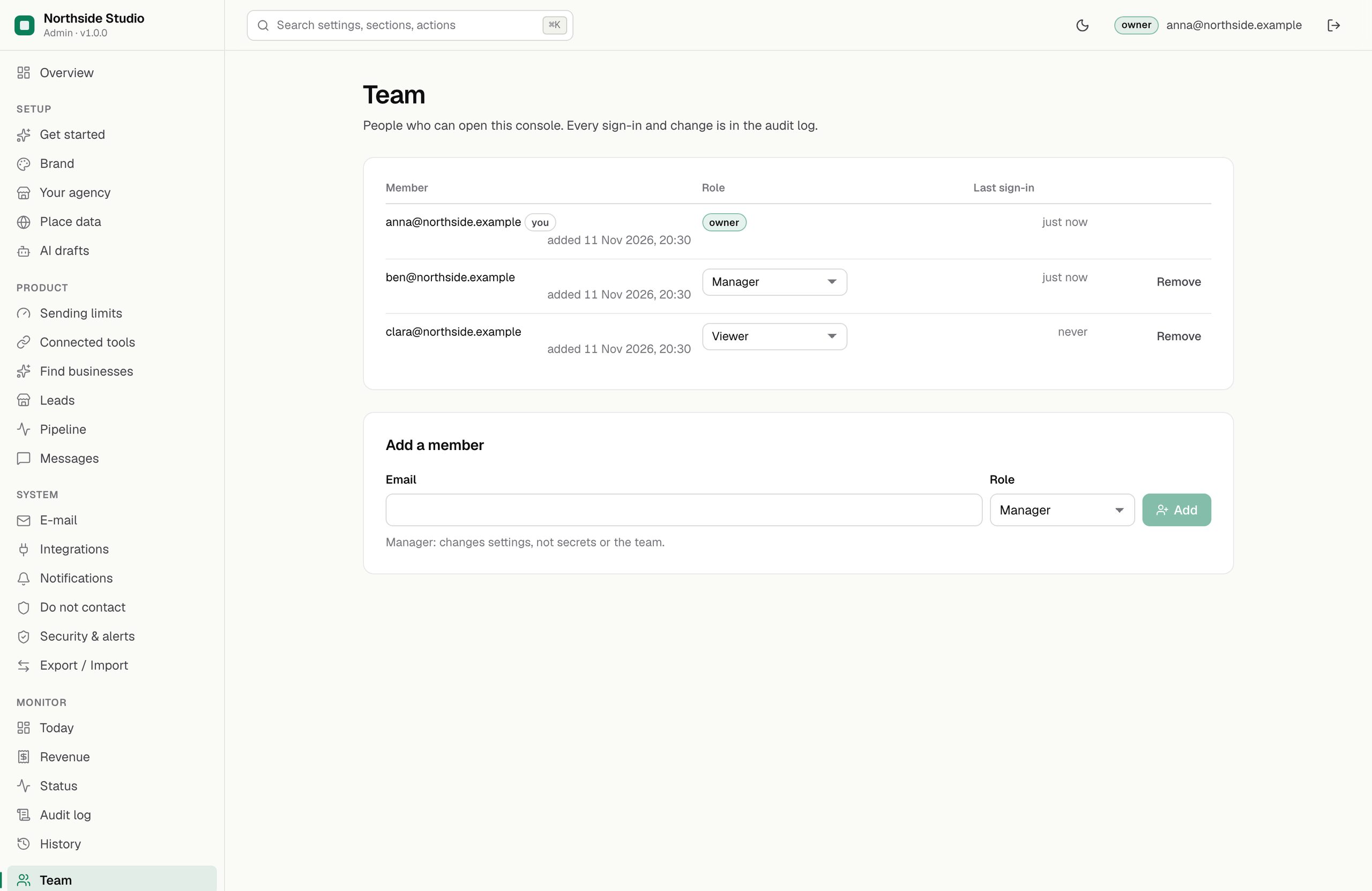
02Add a team member
- Open Team (owner) and add the person's e-mail with a role.
- Copy the one-time password the console shows. It is shown once and cannot be recovered.
- Give it to the person by a channel you trust. They sign in at
/adminand change it.
Removing a member signs them out at once; they can no longer open the console.
03Lead owner on a lead
Separate from roles: on a lead page, Assign to me marks you as the person working that business, and Release takes it back. It helps a team share the work; it changes no permission.