
Leads
every business, and one page per business.
Leads is the list of every business you found or added. Filter it, sort it by score, export it, and open one business to see its website check, its score, its messages, notes, tasks and history on one page.
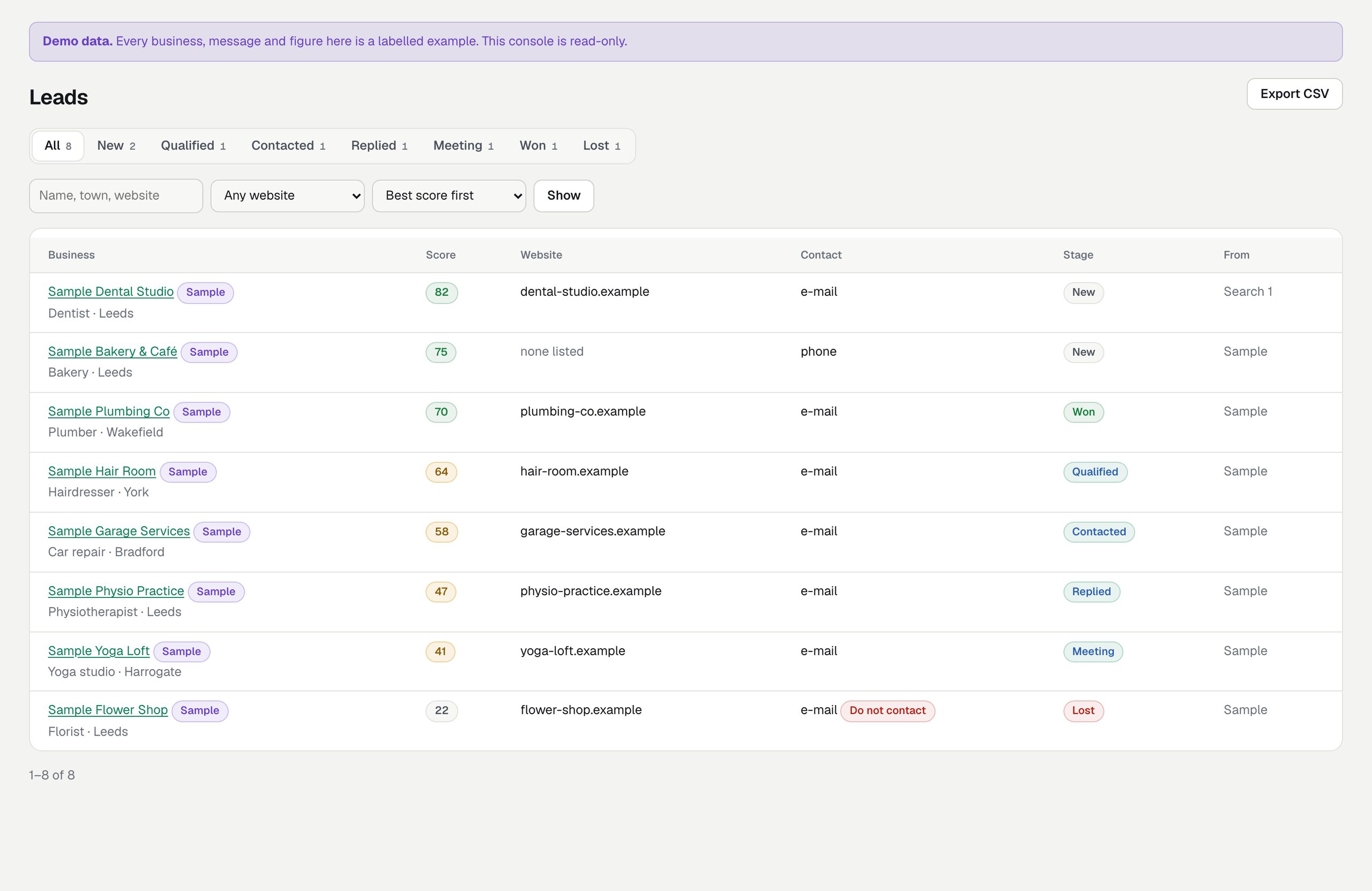
01The list
- Stage tabs (All, New, Qualified, Contacted, Replied, Meeting, Won, Lost) with counts.
- Search by name, town or website; Website: any, has a website, no website; Order: best score first, newest first, by name.
- Columns: business (type and town), score (or "not scored"), website host, which contacts are known (e-mail, phone), a Do not contact mark, stage, and where the lead came from.
02The lead page
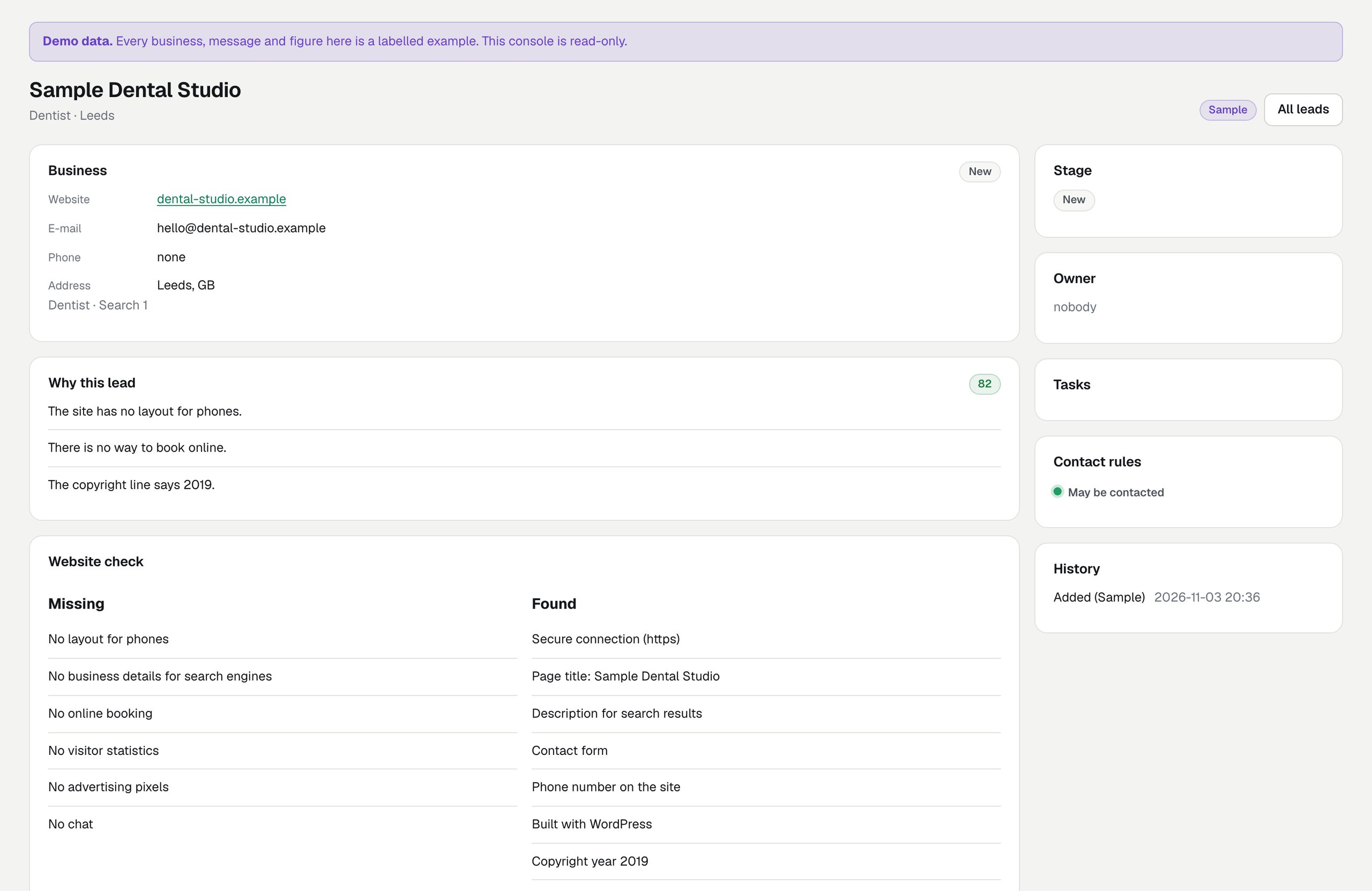
| Panel | What it holds |
|---|---|
| Business | Name, website, e-mail (only an address the business publishes or gave you), phone, town, country code, address; Save and Open the website. Below: type, rating and reviews (Google), source and the place-data credit. For a Google lead: until when Google's details may be kept. |
| Why this lead | The score and up to six reasons in plain sentences (Scoring). |
| Website check | Check the website / Check again, what is missing and what was found, the report link (The website check). |
| Messages | Write an e-mail, Write a call script, and every message for this business with its state (Writing and sending). |
| Notes | What you learned, with who wrote it and when. |
| Stage | Buttons for New, Qualified, Contacted, Replied, Meeting; Mark as won with deal value and currency; Mark as lost with a reason (Pipeline). |
| Next for this client | Only when won and when Connected tools are set. |
| Owner | Assign to me / Release. |
| Tasks | A title and a due date; Done / Reopen. Open tasks appear on Today. |
| Contact rules | Mark do not contact / Allow contact again; Delete the lead (owner) with its notes, messages and website checks. |
| History | Everything that happened: added, checked, stage changes, messages, unsubscribes, Google details removed. |
03Duplicates
A business from a search is matched on its source and its id there. Running the same search again updates what the source says (address, phone, website, rating) and never touches what a person wrote: stage, owner, notes, and a contact typed by hand. The same business found in OpenStreetMap and in Google, or entered twice in OpenStreetMap, appears as two leads; the waiting time between e-mails still counts both, because it checks the address as well.
04CSV export
- Press Export CSV on the Leads page (manager or owner).
- Open
leads.csvin a spreadsheet. It holds up to 1,000 leads, best score first.
Columns: name, category, city, country, address, phone, website, email, stage, score, owner, source, provider, provider_id, deal_value, deal_currency.
name,category,city,country,address,phone,website,email,stage,score,owner,source,provider,provider_id,deal_value,deal_currency
Example Dental,dentist,Leeds,GB,12 Example Street,'+44 113 000 0000,https://dental.example,info@dental.example,new,82,,search:4,osm,node/123,,
Example Hair,hairdresser,,,,,,hello@hair.example,qualified,64,anna@your-agency.example,search:5,google,ChIJ_example,,- Google leads have city, country, address, phone and website left empty in the export, because Google's terms allow keeping only the place id. The e-mail stays when it came from the business's own website.
- A cell that starts with
=,+,-or@gets a leading apostrophe so a spreadsheet does not run it as a formula (that is why the phone number above starts with'+44). - Each export is written to the audit log.