
Writing and sending
one message, one person's click.
Leadlantern drafts a first e-mail or a call script from what the website check found. The draft is yours: read it, change it, then send it from the console, copy it into your own mail app, or make the call. Nothing is ever sent without a person pressing a button, and nothing is sent in bulk.
01Write a draft
- Open a lead, ideally one whose website you checked.
- Press Write an e-mail or Write a call script in the Messages panel.
- Open the draft. It is saved at once and waits under Messages → Drafts.
Without an AI key the draft comes from a template:
Subject: A few notes on dental-studio.example

Hello,

I am Anna from Northside Studio; we build and rebuild websites for local businesses.

I looked at dental-studio.example and noticed a few things:

- The site has no mobile layout.
- There is no contact form on the site.

If it is useful, answer this e-mail and I will send more detail. If not, there is no need to reply.

I put what I found on one page:
https://leads.your-agency.example/r/<link>

Kind regards,
Anna from Northside Studio
The reasons come from the lead's score (at most three). The report link is added when the check read the site and the public URL is set. With an AI key the middle part is written by your model from the same facts (AI drafts). A call script has an opening line, who you are, why you call, one question, and what to do if they are not interested.
02The message page
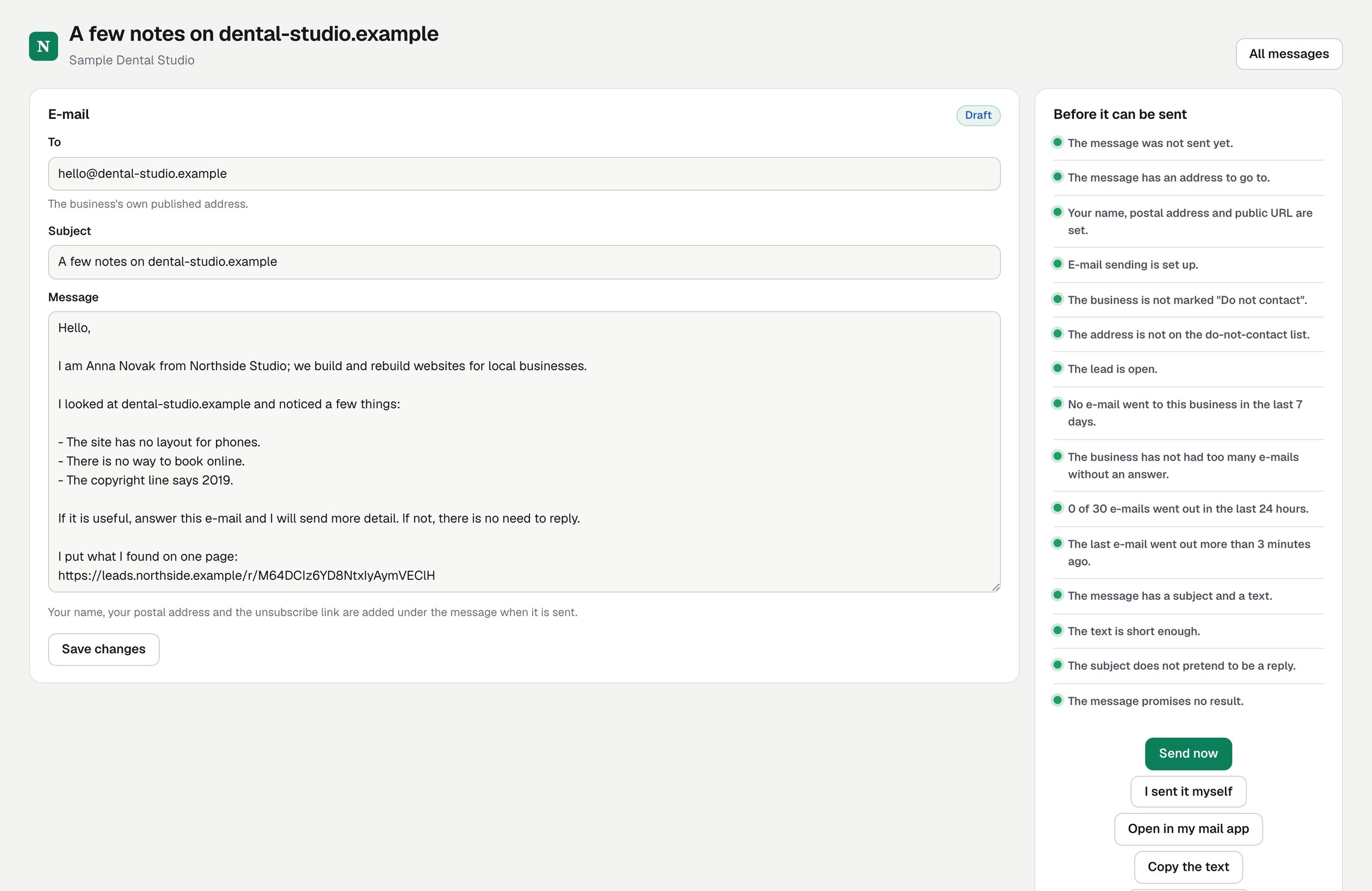
- To: the business's own published address. Subject. Message: the text. Your name, your postal address and the unsubscribe link are added under it when it is sent; they are not part of the draft.
- Save changes after editing. A blocked or failed message becomes a draft again and is checked afresh.
- Before it can be sent: every send rule with a green or red lamp (Send rules).
- Send now: sends this e-mail through Resend after a confirmation. It is off until every line is green.
- I sent it myself (or I made the call for a script): records it as sent without sending anything.
- Open in my mail app: opens your mail program with address, subject and text filled in. Copy the text: copies the text.
- Delete the draft.
03Send an e-mail
- Read and change the draft. Say what you saw, not what will happen.
- Save changes and look at Before it can be sent. Fix every red line.
- Press Send now and confirm. The server checks every rule again at that moment and sends, or marks the message Blocked with the first rule that failed.
- Done. The message is Sent, signed with your name, and a lead that was New or Qualified moves to Contacted.
A sent message cannot be changed or deleted: the waiting times and limits are counted from it.
04Send from your own mail app
- Press Open in my mail app or Copy the text.
- Add your postal address and a way to opt out yourself; the automatic footer is added only to messages sent through Resend.
- Send it from your mailbox.
- Press I sent it myself. Leadlantern checks that the business is not marked do not contact, not on the do-not-contact list and not lost, then records it. It counts towards the daily limit and the waiting times like any sent e-mail.
05The Messages page
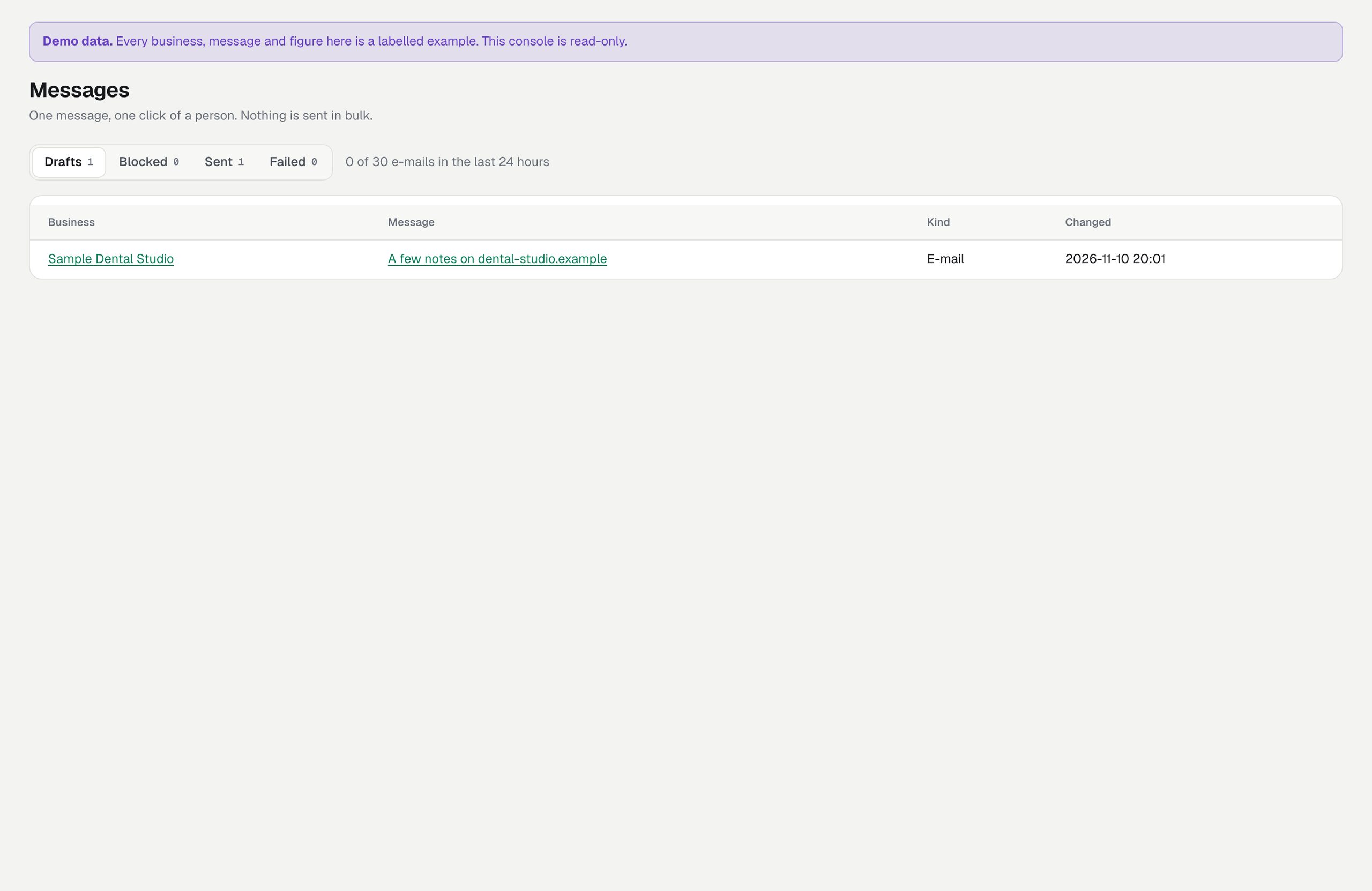
Four tabs: Drafts waiting for you, Blocked (with the reason), Sent, Failed (with Resend's reason). Above them: how many e-mails went out in the last 24 hours against your daily limit. Messages written by a model carry an AI draft mark.
06Replies
Leadlantern does not read your mailbox. Replies arrive in your own mail app (the address under E-mail → Replies go to). When a business answers, open the lead and press Replied; that also lifts the limit on unanswered e-mails.