
Integrations
your keys, stored encrypted.
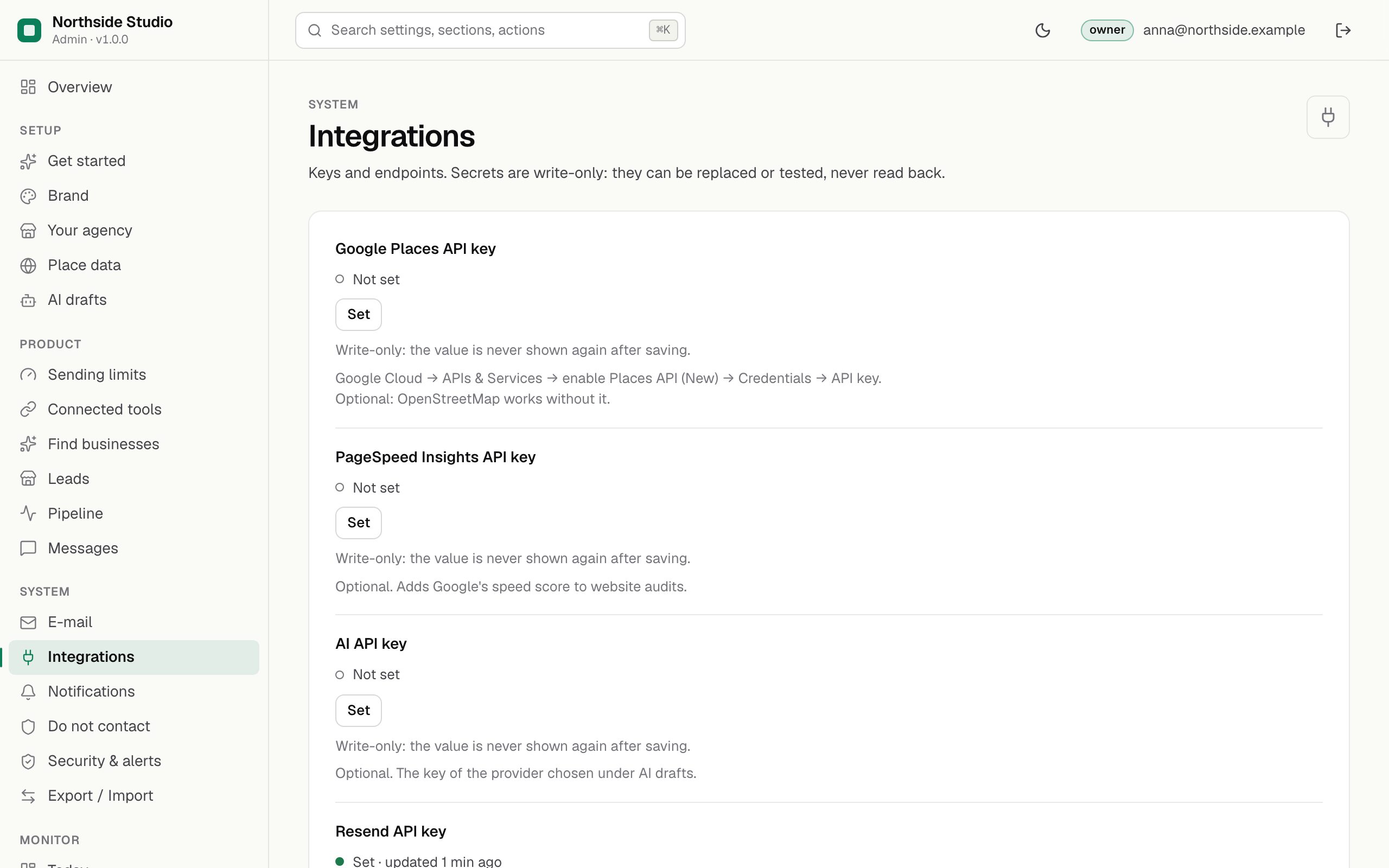
An API key is a long password that lets Leadlantern use a service in your name. Every key for an outside service goes here. Each one is optional: without a Google key, searches use OpenStreetMap; without a PageSpeed key, the website check skips Google's speed score; without an AI key, drafts come from a template; without a Resend key, you send from your own mail app. The service that issued a key bills you for its use, never the author of this item. Keys are write-only and stored encrypted; only the owner can change them.
01Fields
| Key | How to get it | Test connection | .env name |
|---|---|---|---|
| Google Places API key | Step by step below. Optional: OpenStreetMap works without it. | One search request that asks only for a place id. Success: "Google Places accepted the key." | GOOGLE_PLACES_API_KEY |
| PageSpeed Insights API key | Step by step below. Adds Google's speed score to website checks. | No test button. Run a website check and look for "Google speed score on phones". | PAGESPEED_API_KEY |
| AI API key | AI drafts → Get a key. Set the format and model under AI drafts first. | One short request to the model. Success: "<model> answered". | AI_API_KEY |
| Resend API key | E-mail → Set up Resend. Sending access is enough. | Asks Resend for your domains. Success: your domains with their state, or "sending-only key". | RESEND_API_KEY |
02Paste a key into Leadlantern
- Open Settings → Integrations (
/admin#/s/integrations) as the owner. - Press Set next to the key (or Replace when one is stored).
- Paste the key exactly as the service showed it, with no spaces before or after, and save.
- Press Test connection where offered. A green line that starts with "Connection OK." means it works; a red line gives the service's reason.
A key set in .env wins and locks the field. Each saved key and each test is written to the audit log, without the key. A manager may test a key; only the owner may set, replace or clear one.
03Google Places API key
In plain words: Google Places is Google's directory of businesses. With your own key, Leadlantern can search it as a second source next to OpenStreetMap and gets phone numbers, websites, ratings and review counts. Google bills every search to the billing account of your Google Cloud project, under Google's own price list (what a search costs you). Without a key nothing changes: searches use OpenStreetMap.
- Sign in to the Google Cloud console (console.cloud.google.com) with your Google account. If you have never used it, Google first walks you through "Getting started with Google Maps Platform".
- Pick or create a project in the project selector at the top. One project for Leadlantern is enough.
- Turn on billing. Open the Billing page and select your project. If no billing account is linked, Google asks you to link one, or to create one under Manage Billing Accounts. Google requires billing even for small use.
- Enable the API. Open the product page of Places API (New) in the console (search for it in the top search box) and press Enable. If you see Manage instead, it is already on. It can take a few minutes before it answers.
- Create the key. Go to Google Maps Platform → Keys & Credentials and press Create credentials → API key. In the Create API key panel open Select API restrictions, clear every API except Places API (New), and press Create. The panel shows the key.
- Copy the key. You can see it again later on Keys & Credentials with Show key.
Then paste it under Google Places API key (above) and press Test connection.
A working key shows a green Connection OK under the field with the line Google Places accepted the key.
The test makes one request that asks only for a place id, the smallest field Google offers. If it fails, the red line repeats Google's reason, for example that the API is not enabled or the key is restricted to other APIs (Troubleshooting).
04Restricting the Google key and setting a billing alert
In plain words: a restricted key can only call the API you chose, so a leaked key cannot be used for other paid Google services. A budget alert e-mails you when spending reaches amounts you choose.
- Restrict the key if you skipped it above: Google Maps Platform → Keys & Credentials, click the name of the key, in Select API restrictions select only Places API (New), press Save. Selecting an API here does not enable it; step 4 above does.
- Open Budgets & alerts in the Billing section of the console and choose your billing account.
- Press Create budget. In the Define section select Alerts only, type a name, and press Next.
- Set the scope to your Leadlantern project and the amount: a monthly figure you are comfortable with.
- Keep or change the alert thresholds. Google suggests 50%, 90% and 100% of the budget. By default the e-mails go to the billing administrators and users of the billing account.
- Press Finish.
Google's own documentation says a budget alert does not cap usage or spending: it only tells you. If you want to stop spending, remove the key from Leadlantern or disable the API in Google Cloud.
05PageSpeed Insights API key
In plain words: PageSpeed Insights is Google's speed test for web pages. With a key, each website check adds Google's speed score for phones (0 to 100) and the lead's score can use it. Google sets the quota and terms of the key in your Google Cloud project. Without a key, the check still measures how long the home page took to answer.
- In the same Google Cloud project, search the console for PageSpeed Insights API and press Enable.
- Create a key on the Credentials page (Create credentials → API key). Under API restrictions select only PageSpeed Insights API. A separate key per API keeps each one restricted.
- Paste it under PageSpeed Insights API key in Leadlantern and save. There is no test button for this key.
- Check it works: open a lead with a website and press Check again. The Found list now has a line "Google speed score on phones: N of 100". The PageSpeed request can take up to 60 seconds.
06Who bills you
Google bills Places API use to your Google Cloud billing account, and sets the quota and terms of your PageSpeed key; your AI provider and Resend bill you for their use. Nothing goes through the author of this item. See Third-party services.